There are a multitude of reasons to update firmware on your Sending card (processor) or Receiving card. Typically this would be to fix issues present in older firmware, or to assist with the multi-batch process.
Upgrading NovaStar Firmware
- Obtain the latest firmware for your device. If unsure of what receiving cards are installed, follow these instructions until step 6. Visit www.novastar.tech/downloads/ and navigate to the "LED Control System" tab to find the correct receiving card and firmware. Sending card firmware is listed under each processor by name.
- Download the latest version of NovaLCT from NovaStar. Visit www.novastar.tech/downloads/ and navigate to Software > NovaLCT.
- Launch NovaLCT and navigate to Users > Advanced Synchronous System UserLogin
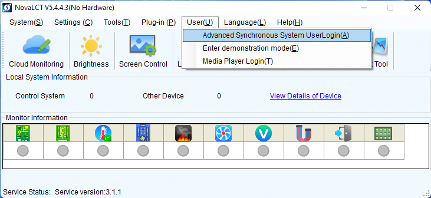
- Use the password "admin" and click Login
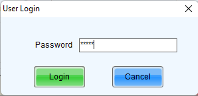
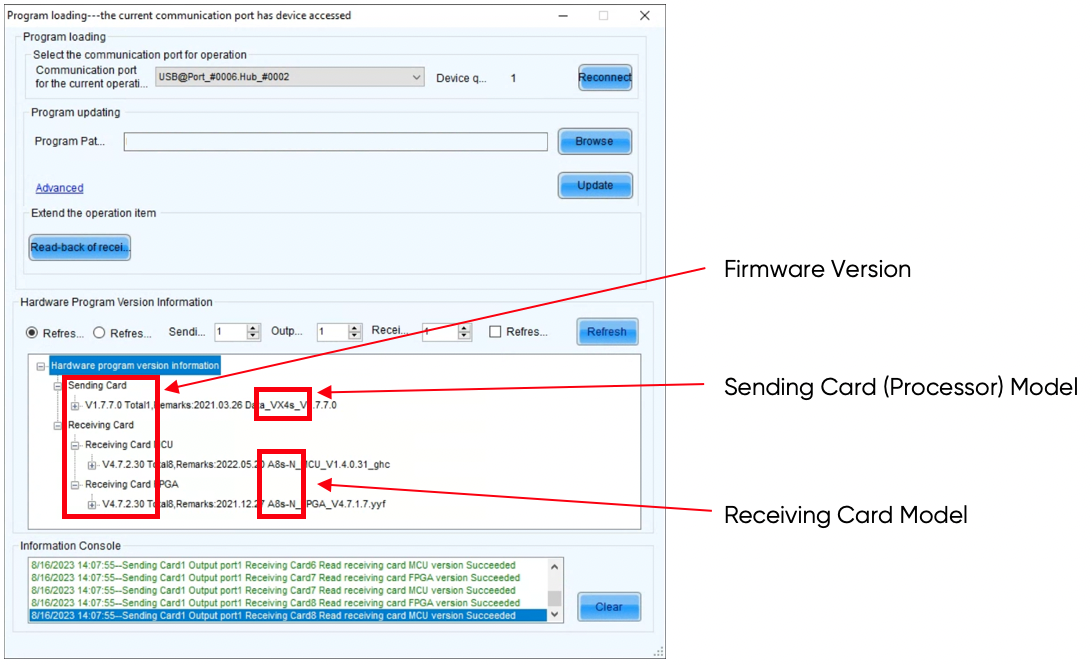
- Without clicking any options, type "admin" and wait a few seconds. This will open the "Program Loading" window, otherwise known as the firmware upgrade dialogue.

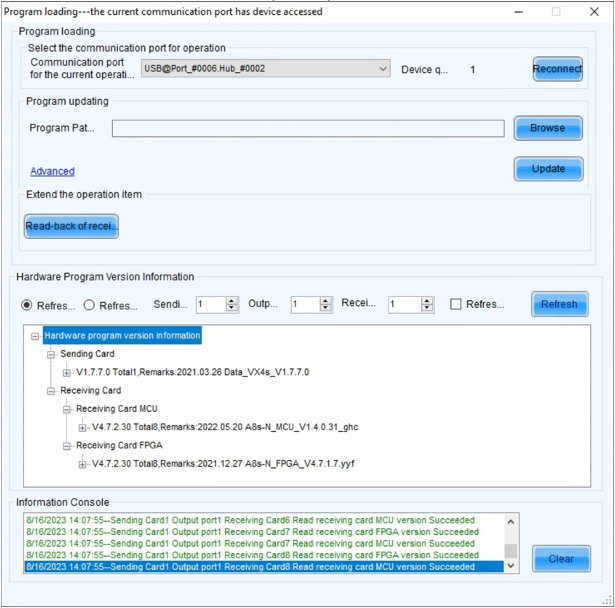
- Click "Refresh" to pull firmware information about the current system. This will report any sending cards detected, along with the MCU and FPGA firmware versions for all receiving cards. Send and Receive card models are also listed here.
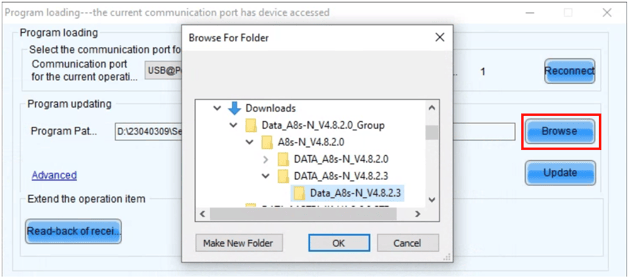
- Unzip the new firmware. NovaLCT needs a non-zip folder to continue. Click "Browse" to select the new firmware. In some cases, there may be multiple firmware versions in the download. Select the newest (highest number) release and click "OK"
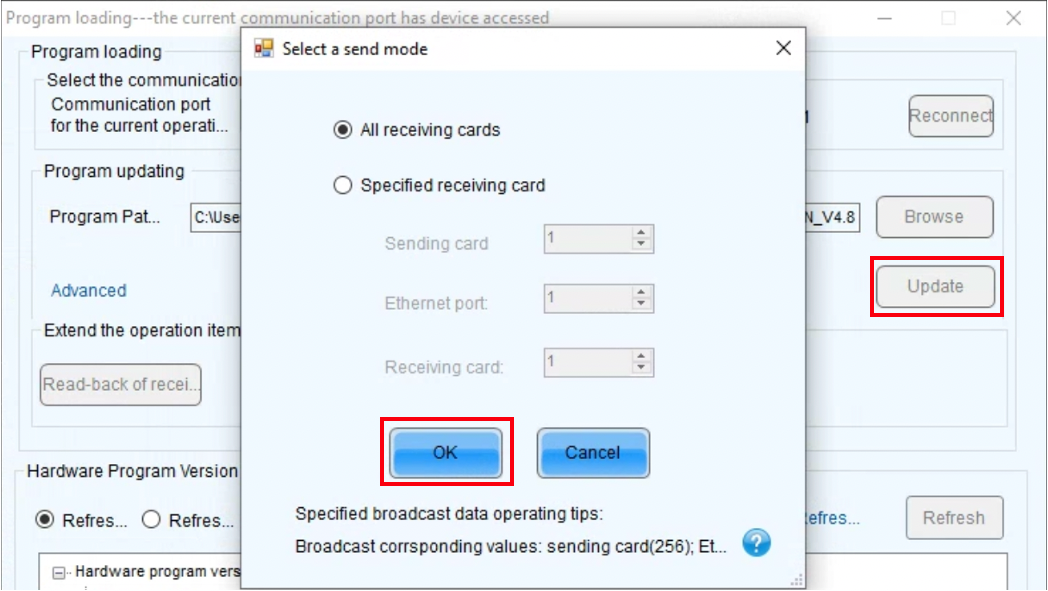
- Once the correct firmware has been selected, click the "Update" button. Ensure "All Receiving Cards" is selected, then click "OK"
It is recommended to only upgrade receiving cards with similar firmware together. Panels that contain receiving cards with separate firmware versions should be updated separately.
Ensure your power source to the computer, processor, and panels is stable!
- During the upgrade process, the screen will display the current status. There are 4 steps to the upgrade. Depending on the number of panels connected, this upgrade can take some time. Once the upgrade has been completed, a confirmation will be shown.

- Click "Refresh" to verify all cards have received the upgrade.
Still having trouble? Reach out to the IRiS Video Team: videosales@blizzardpro.com