Re-flashing your panels with an RCFGX file can fix a number of seemingly random issues that occur.
Flashing panels with an unknown or incorrect RCFGX file can yield unwanted results. If you are unsure if you have the right file, reach out to the IRiS Video Team: videosales@blizzardpro.com
- Download the latest version of NovaLCT form NovaStar's website
(www.novastar.tech/downloads > Software > NovaLCT) - Launch the software and navigate to Users > Advanced Synchronous System UserLogin
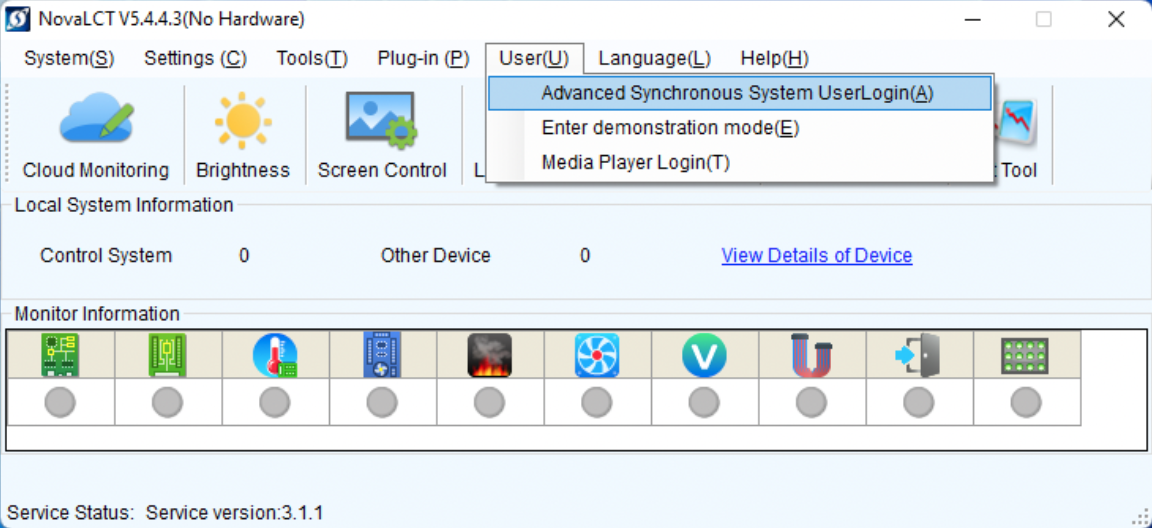
- Use the password "admin" and log in.

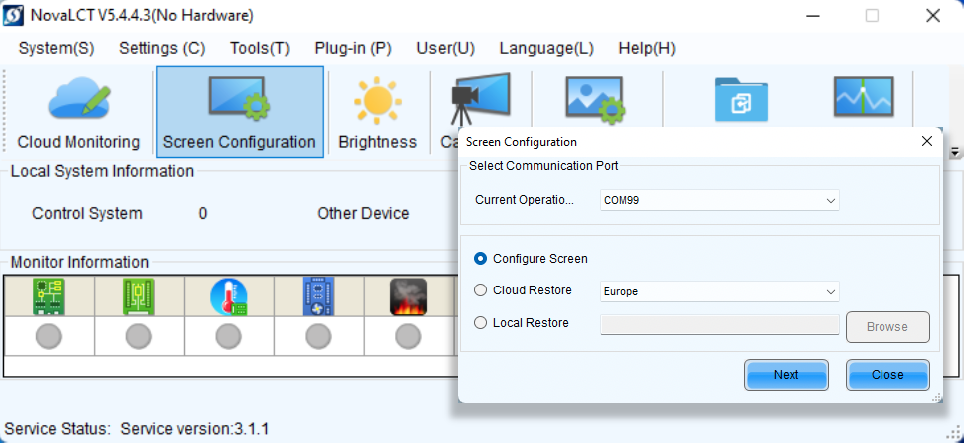
- Click "Screen Configuration", then select the correct USB device from the "Current Operation" dropdown. (If using only one processor, it will be automatically selected)
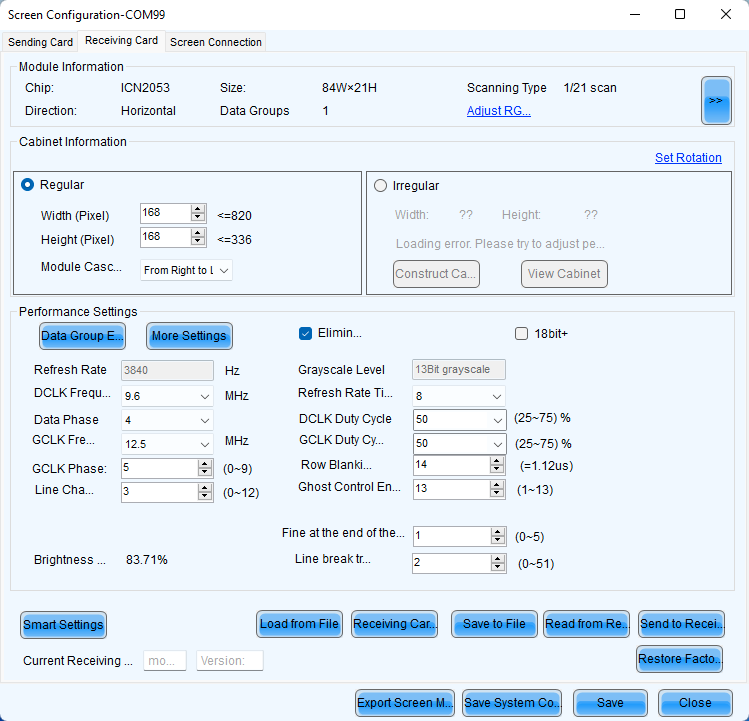
- Select the "Receiving Card" tab located at the top of the window. Click "Load from File" to load the desired RCFGX file into NovaLCT.
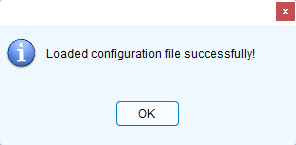
- If NovaLCT loaded the file correctly, a confirmation will be displayed. Click "OK"
- Verify the information in the Cabinet Information section matches the configuration of the connected panels. After confirming this, click "Send to Receiving Card"
NOTE: Some 500 x 500mm panels may show up as the 500x1000 variant. This is expected.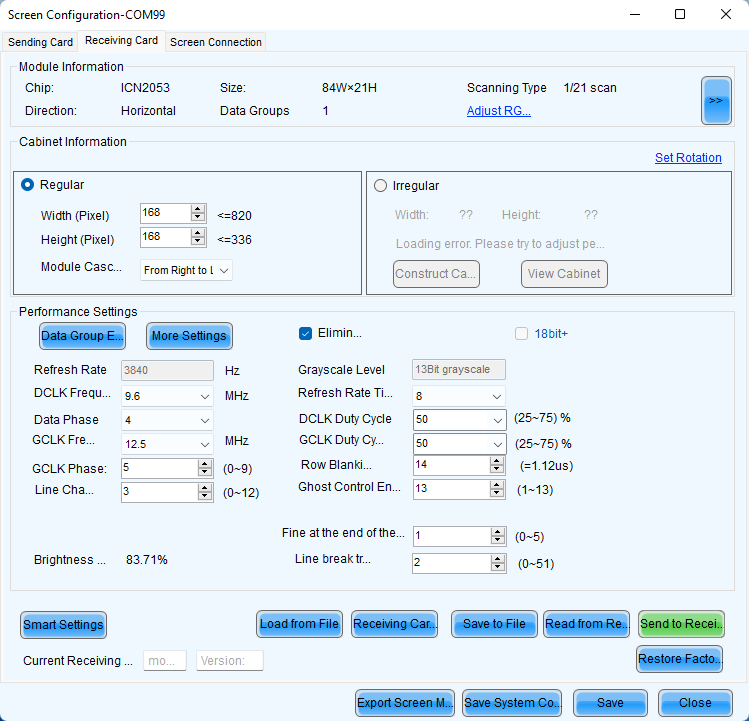
- All Receiving Cards will be selected by default. Click "Send" to flash the new data to all connected panels.

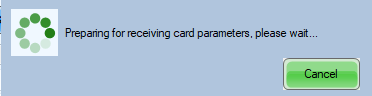
- When sending the configuration data, NovaLCT will display a "working" message, followed by a confirmation.
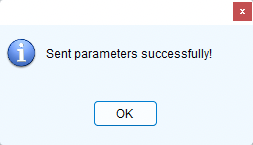
- After verifying the panels display correctly, click "Save" then "Close"
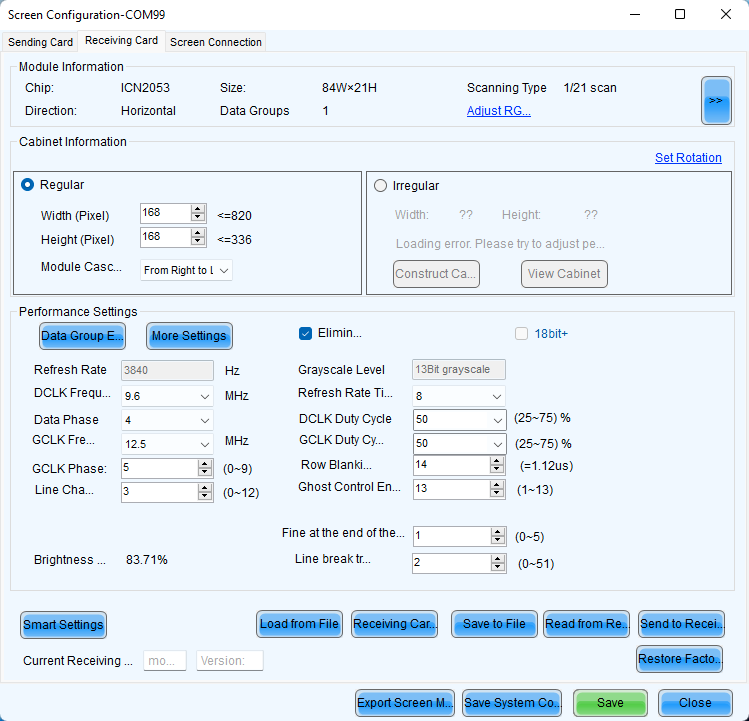
NOTE: Some panels may require a power cycle after flashing new data.
Still having trouble? Reach out to the IRiS Video Team: videosales@blizzardpro.com